4 Usage
This page assumes that you have installed synthclient and signed up, so that you now have a synth token (.st).
If you have installed the synthclient binary locally, you can run these commands:
echo "your passphrase here" > token.passphrase
synthclient --port 8080 \
    --token-file token.st \
    --keypair-file token.priv \
    --keypair-passphrase-file token.passphrase &
Here, token.st and token.priv are the files you downloaded in Section 3.3 and the passphrase is the passphrase B you picked for this synth token.
If you are using Docker, put token.st, token.priv and token.passphrase in a directory like /usr/share/securedna-certificates, and start synthclient like this:
docker run --name synthclient \
  --env SECUREDNA_PORT=8080 \
  --env SECUREDNA_SYNTHCLIENT_TOKEN_FILE=/certs/token.st \
  --env SECUREDNA_SYNTHCLIENT_KEYPAIR_FILE=/certs/token.priv \
  --env SECUREDNA_SYNTHCLIENT_KEYPAIR_PASSPHRASE_FILE=/certs/token.passphrase \
  --volume /usr/share/securedna-certificates:/certs/:z \
  --user $(id -u):$(id -g) \
  --detach \
  -p 8080:8080 \
  ghcr.io/securedna/synthclient \
  ./synthclient
Podman works too: replace docker with podman in the command above.
At this point, you can submit DNA strings to SecureDNA through synthclient. Use the API to submit orders programmatically, or the Web Interface (documented below) to see SecureDNA’s analysis of a single DNA input in your browser.
4.1 Web Interface
When synthclient is running, it exposes a web-based frontend on port 8080. To open it, simply navigate in a browser to http://localhost:8080 from the computer running synthclient. (Or, for example, if the computer running synthclient has a local IP address like 192.168.33.44, you can navigate to http://192.168.33.44:8080 within its local network.)
This page is simply a human-friendly interface to your local synthclient, offering a visualization of its results. The data you submit is not sent anywhere but your synthclient, which in turn only sends hashes (not DNA) to SecureDNA’s servers.
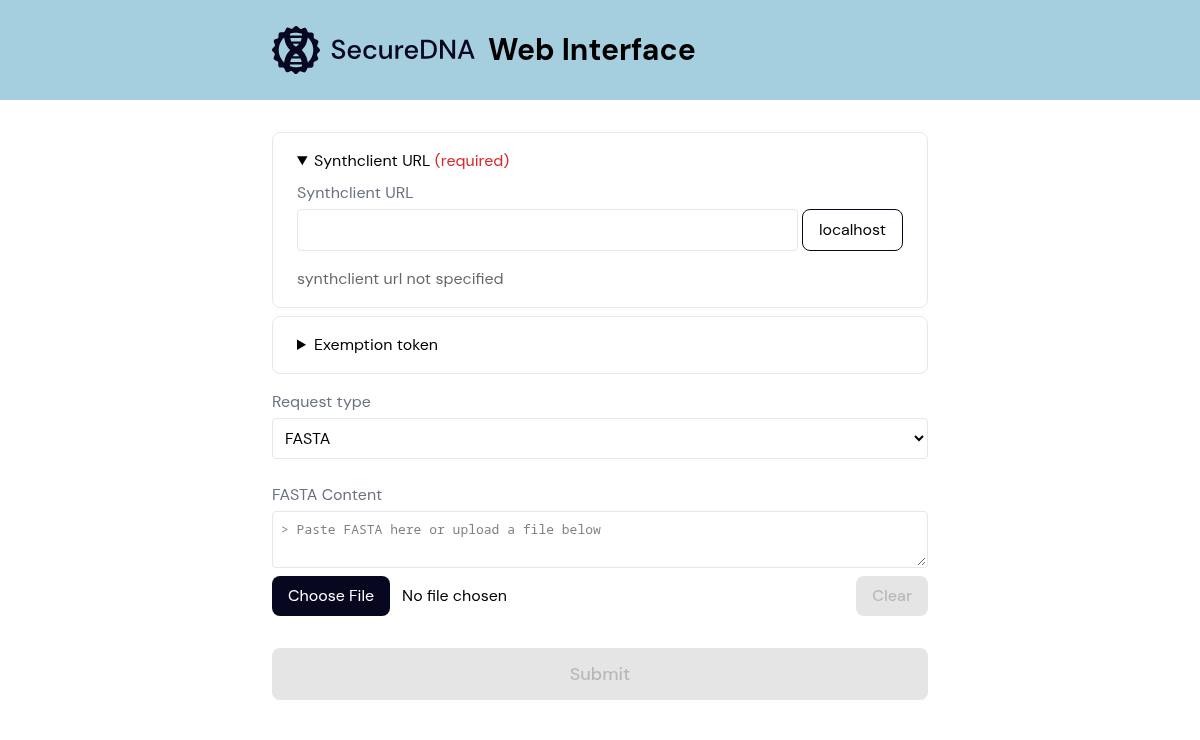
synthclient Web Interface4.1.1 Using the Web Interface
Point it at your
synthclient. In the Synthclient URL box, type the address where yoursynthclientis listening, such ashttp://localhost:8080. The localhost button next to the box fills inhttp://localhost:80, so if you startedsynthclienton another port (as in the example above), change the port by hand. Once the address is correct, the page shows the version of thesynthclientit reached.Attach an exemption token (optional). To try out an exemption token, open the Exemption token section and upload the
.etfile, then follow the steps to authenticate to it. Skip this section if you do not have a token.Choose what to screen. Set Request type to FASTA to provide the sequence yourself, or Accession number to download a sequence from NCBI by its AN.
Press Submit. When submitting through the Web Interface, the maximum sequence size is 1,000,000 bp.
A granted order simply reads Permission granted. A denied order lists the hazards that were found, grouped by FASTA record. Each organism is drawn with its matching regions marked, and hovering over an organism name shows the individual hits. Copy as JSON and Download JSON give you the same answer in the form the API returns, which is useful when you want to keep a record, compare it with your own code, or troubleshoot with SecureDNA about a specific result.