7 Requesting exemptions
This page describes how researchers can request exemptions from SecureDNA’s hazard screening.
7.1 Creating an exemption request token
You can create an exemption token request (ETR) using the Exemption Request Form.
You’ll need to specify contact information and a shipping address to which the exemption is granted. The token is only valid for orders to this same address and addressee.
You’ll also be required to set up two-factor authentication to make sure the eventual token can’t be used by anyone but you. This can be done using an app, such as Google Authenticator or Aegis Authenticator, or using a hardware Yubikey.
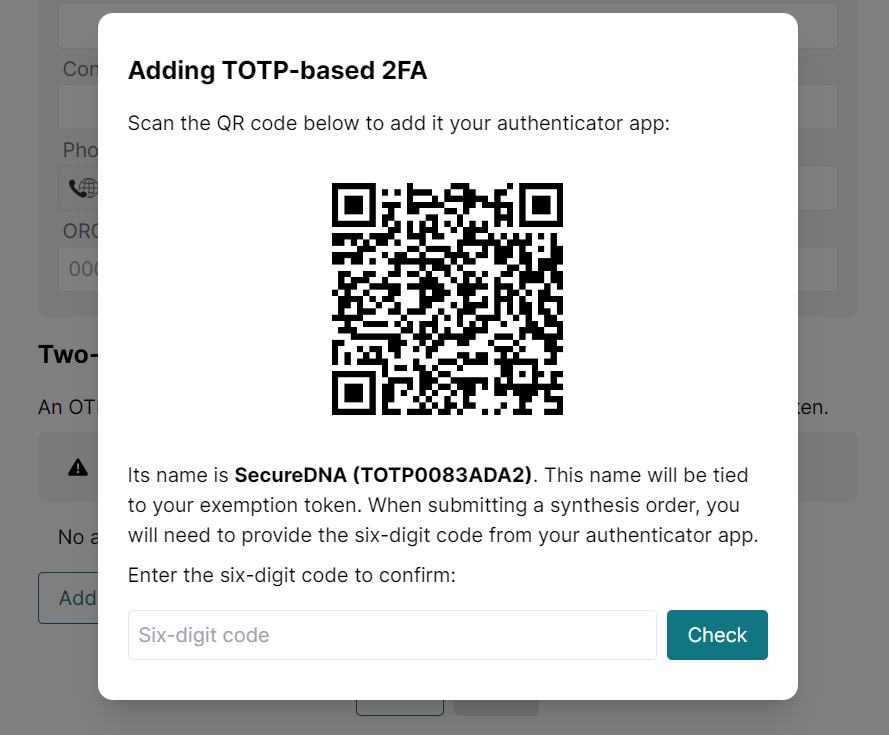
To set up two-factor authentication using an authenticator app, click “Add TOTP (Authenticator app)”, then scan the QR code in the app. Finally, enter the six-digit code presented by the app to confirm.
To use a Yubikey, click “Add Yubikey (physical key)”, then touch the Yubikey inserted into your computer to generate an OTP into the provided field.
7.2 Subsetting
There are a few scenarios in which you may want to create subset ETs of your exemption token. For example:
- You are the head of a lab that researches a certain pathogen, and you want to create sub-ETs for individual researchers in your lab, without having to submit a new request to your biosafety authority fo each one.
- You are requesting a large number of exemptions at once, but when it comes to submitting an order, you want to trim down the token to only contain the exemptions you need in that order, for privacy reasons.
In such scenarios, you can attach a keypair to your ETR by clicking New keypair. Later, you’ll be able to make subsets of your ET by providing the private key of this keypair in the Subsetting Tool.
7.3 Specifying organisms
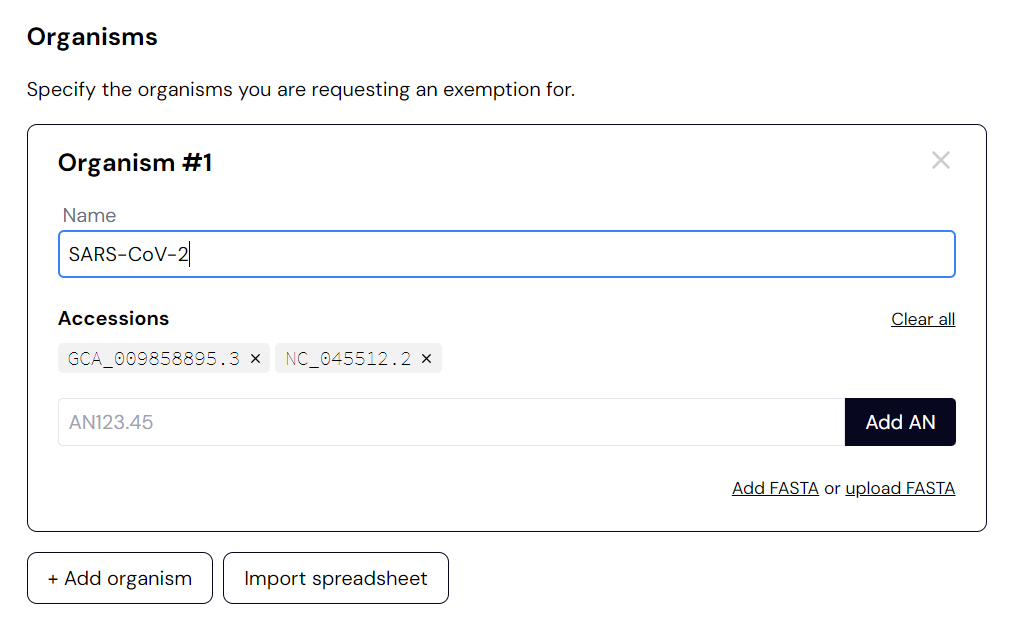
On the next page, add the organisms you’re requesting exemptions for. If you type in an organism name that SecureDNA recognizes, it will autocomplete with the recognized spelling and accession numbers from GenBank. Otherwise, you can also upload your own FASTA files.
It’s good to understand how this data is used during screening. If SecureDNA detects a hazardous window of DNA in your order, there are two ways an exemption may cause the window to be ignored:
- The window is recognized as an organism name or accession covered by your exemption.
- The window occurs exactly in a FASTA file attached to your exemption.
Synthesis may still be denied if SecureDNA detects other hazardous DNA not covered by your exemption.
7.4 Spreadsheet upload
Instead of pasting in FASTA files manually, you can click Import spreadsheet to upload a spreadsheet in a two-column format like so:
my organism name       ACTGACTGACTGATGATGACCCCTAGCCGA
Another_organism       ATGTGCTGGGCTGCGACGCAAGACTCA
third_organism_1234    AATGCTGCTTTGATGCAATGCTGACGTCTAC
Supported formats include .xls, .xlsx, .csv, .tsv, .odt.
7.5 Your .etr file
On the last page of the form, you get an .etr file, which you can send to your biosafety authority (BSA) or another responsible within your organization. They will approve this file using another SecureDNA tool, and send you an .et file — the actual token submitted with your DNA synthesis order.
Your .etr file is not a token, and doesn’t grant any exemptions. Only the .et file generated by an authorized party grants exemptions.
7.6 Using an .et file
Once you’ve been sent an ET file, you can attach it with your screening/synthesis request to get screening exemptions. For example, you can upload it under the “Exemption Token” box in the Web Interface.